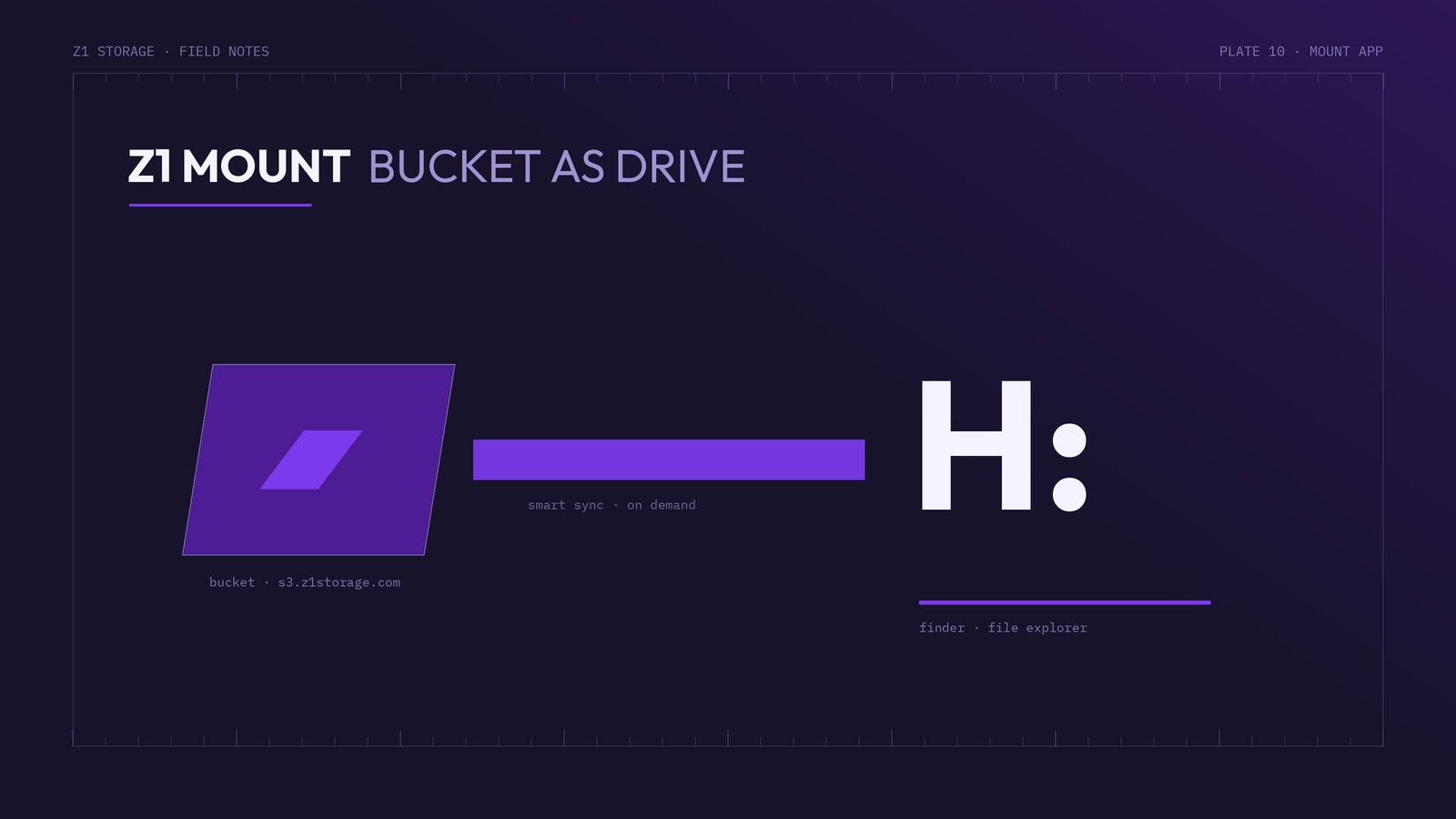
Not every backup or file task needs a command line. The Z1 Mount App is our free desktop application that mounts your Z1 Storage buckets as a drive on Windows and macOS — so your cloud storage shows up in File Explorer or Finder and behaves like a locally connected disk.
Why mount your storage?
- Browse backups instantly. Open your backup space like any folder, and open remote files with any application — no downloads or web consoles needed.
- Ad hoc backups by drag and drop. Copy files to the mounted drive and the app syncs them to your bucket in the background.
- Works with your existing backup software. Any on-device backup program that can write to a folder or drive letter can now write to Z1 Storage.
- Multi-device access. The same bucket can be mounted across your machines, giving you one consistent view of your data.
Getting started
- Sign in to your Z1 Storage client area, download the Z1 Mount App for Windows or macOS and install it. The app lives in the Windows taskbar or the macOS menu bar.
- Add a connection. Choose Open Connection, select the S3 protocol and enter:
- Server:
s3.z1storage.com - Access Key ID / Secret Access Key: from your client area
- Nickname: whatever you like — this becomes the volume name in Finder or the drive label in File Explorer
- Server:
- Choose a connect mode (you can change it later by editing the bookmark):
- Online — files are fetched on demand and use no local disk space. Best for browsing large backup buckets.
- Smart Synchronization — folders stay browsable offline, opened files are cached for offline access, and changes upload in the background. Best for day-to-day working files.
- Connect. The bucket mounts as a volume in Finder or as a drive in File Explorer. On Windows you can pin a fixed drive letter (e.g.
H:) in the bookmark settings so scripts and backup jobs always find the same path.
Useful settings and tricks
- Read-only mounts — tick Read Only in the bookmark options to browse a backup bucket with zero risk of accidental deletion or modification. Ideal for verifying backups.
- Keep files offline — right-click any file or folder on the mounted drive and choose Keep Offline on Local Disk for guaranteed local copies; Delete on Local Disk frees the cache again.
- Share links — right-click a file to copy a temporary signed URL, letting someone download the file securely without any Z1 credentials.
- Previous versions — on buckets with versioning enabled, right-click a document to view or restore earlier versions. Pair this with an Object Lock-enabled bucket for tamper-proof history.
- Bandwidth controls — cap upload and download rates in Preferences so background syncing never competes with your day-to-day work.
- Start at login — enable the login item and workspace saving in Preferences and your volumes reconnect automatically after every reboot.
- Encrypted vaults — create a client-side encrypted vault (Cryptomator-compatible) inside your bucket for sensitive folders; data is encrypted before it leaves your device.
- Fresh listings — the app polls open folders for remote changes about once a minute; right-click → Reload (or F5 on Windows) forces a refresh.
Mount App or S3 API?
The Mount App is the fastest way to make Z1 Storage feel like part of your computer. When you need scripted or automated workflows instead, the same buckets remain fully accessible over our S3 API with tools like rclone, s3cmd and the AWS CLI — mounting and API access work side by side on the same data.
Ready to try it? Create your free account — first 10GB free — and download the Z1 Mount App from your client area. More details are on the Z1 Mount App page.