rclone is a command-line program to manage files on cloud storage, compatible with Windows, macOS and Linux.
Z1 Storage settings at a glance: Storage type: s3 | Provider: Ceph | Endpoint: s3.z1storage.com | Access keys: available in your client area | Recommended flags: --disable-http2 --transfers 16 --s3-upload-concurrency 8 --s3-chunk-size 32M
Install rclone (Linux)
We recommend the official install script, as Linux distribution repositories often ship outdated rclone versions:
curl https://rclone.org/install.sh | sudo bash
Alternatively you can use your package manager (e.g. sudo apt install rclone), keeping in mind the version may be older.
After installation, confirm rclone is installed:
rclone version
Install rclone (macOS)
The easiest method is Homebrew:
brew install rclone
Alternatively use the official install script (curl https://rclone.org/install.sh | sudo bash) or download the macOS build from the rclone downloads page. Confirm with rclone version.
Install rclone (Windows)
The quickest method is winget, from Command Prompt or PowerShell:
winget install Rclone.Rclone
Alternatively, download the Windows build from the rclone downloads page and extract it to a working directory such as C:\rclone. To use it, open the folder, type cmd in the address bar and press Enter — this opens a command prompt in that directory.
Configure rclone for Z1 Storage
The quickest way is one command. Replace the two keys with your own and run it:
rclone config create z1storage s3 provider=Ceph endpoint=s3.z1storage.com acl=private access_key_id=YOUR_Z1_ACCESS_KEY secret_access_key=YOUR_Z1_SECRET_KEY
This creates a remote called z1storage. Check it works by listing your buckets:
rclone lsd z1storage:
If you prefer to answer the prompts yourself, run rclone config and use the answers below. Menu numbers change between rclone versions, so match on the prompt name rather than the number.
n                          # New remote
name> z1storage            # any name you like
Storage> s3                # Amazon S3 Compliant Storage Providers
provider> Ceph
env_auth> false            # enter keys in the next step
access_key_id> YOUR_Z1_ACCESS_KEY
secret_access_key> YOUR_Z1_SECRET_KEY
region>                    # leave blank, press Enter
endpoint> s3.z1storage.com
location_constraint>       # leave blank, press Enter
acl> private               # only you can access your data
Edit advanced config?> n
Keep this "z1storage" remote?> y
q                          # quit config
Your access key and secret key can be retrieved from your Z1 Storage client area. Keep your keys safe and do not share them with others.
Use rclone to access your Z1 Storage data
After configuration you can use rclone to manage your buckets and data. A few common commands:
rclone lsd z1storage:                                  # list your buckets
rclone ls z1storage:z1testbucket                       # list files in a bucket
rclone copy /path/to/data z1storage:z1testbucket/data  # copy data to Z1
rclone sync /path/to/data z1storage:z1testbucket/data  # one-way sync to Z1
The full command reference is available HERE.
Get full speed: turn off HTTP/2 and upload in parallel
By default rclone negotiates HTTP/2 with our endpoint and then sends every transfer over a single TCP connection. On a good line that halves your throughput, and on a line with higher latency it can cut it to a fraction. Turn HTTP/2 off so rclone opens one connection per transfer, then raise the number of parallel transfers.
We measured this on 30 September 2026 from a Linux server in South Africa, uploading 200 files of 10 MB each (2 GB) with rclone 1.75.1:
| Settings | Throughput |
|---|---|
| Defaults (HTTP/2) | 20 MB/s |
| HTTP/2 off | 44 MB/s |
| HTTP/2 off, parallel settings below | 84 MB/s |
A single 1 GB file uploaded at 37 MB/s with the same settings. Your numbers will depend on your line, but the ratio holds.
rclone copy /path/to/data z1storage:z1testbucket/data --disable-http2 --transfers 16 --s3-upload-concurrency 8 --s3-chunk-size 32M --progress
--transfers sets how many files upload at once, and --s3-upload-concurrency sets how many parts of each large file upload at once. Raise --transfers if you have bandwidth to spare, or lower it on a slow or shared line. Each part of a multipart upload must be at least 5 MiB, so keep --s3-chunk-size at 5M or above.
To make these the defaults for every rclone command, set them as environment variables (on Windows use setx instead of export):
export RCLONE_DISABLE_HTTP2=true
export RCLONE_TRANSFERS=16
and add the S3 options to the remote in your rclone config file (rclone config file shows where it is):
[z1storage]
type = s3
provider = Ceph
endpoint = s3.z1storage.com
upload_concurrency = 8
chunk_size = 32Mi
Versioned and Object Lock buckets
If your bucket keeps file versions (lifecycle set to "Keep all file versions" or "Keep file versions for set time period", which includes every Object Lock bucket), deleting or overwriting a file with rclone does not remove the old data. The bucket keeps the previous version and, for a delete, adds a delete marker. Old versions count toward your stored data until they are removed.
To see old versions alongside current files:
rclone ls z1storage:z1testbucket --s3-versions
To remove old versions automatically, open the bucket settings in the client area and set the lifecycle to "Keep file versions for set time period". It removes each old version the set number of days after it was replaced or deleted, and never removes a version that is still under Object Lock retention. Switching a bucket to "Keep latest version of file" stops new versions being kept but does not remove the ones already stored.
Mount a Z1 Storage bucket as a directory
rclone can also mount your bucket so you can browse it like any other directory.
Linux and macOS (Linux requires FUSE, preinstalled on most distributions; macOS requires macFUSE or FUSE-T):
rclone mount z1storage:z1testbucket /mnt/clouddrive
Add --daemon to run the mount in the background.
Windows
Mounting on Windows requires WinFsp, a free open-source tool for virtual file systems. Download and install it first, then mount your bucket as a drive letter:
rclone mount z1storage:z1testbucket Z:
Or mount to a folder path:
rclone mount z1storage:z1testbucket C:\clouddirectory
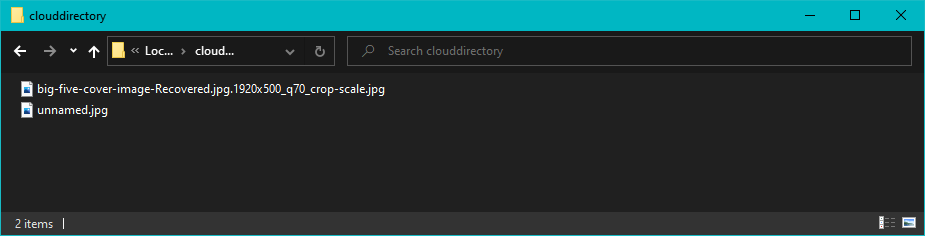
Once the mount is running you can browse the bucket in Windows File Explorer:
Tip: If you prefer a ready-made mount tool, also see the Z1 Mount App which mounts your buckets as a drive on Windows and macOS.
Congratulations! You have successfully configured rclone to work with Z1 Storage.