Ransomware has changed what a “good backup” means. Modern attacks don’t just encrypt your production data — they hunt down your backups first, deleting or encrypting them so you have no way back except paying. If your backup repository can be modified by anyone holding the right credentials, it can be modified by an attacker holding those same credentials.
The answer is immutability: backups that cannot be altered or deleted by anyone — not an attacker, not a rogue administrator, not even you — until a retention period you set has expired. Z1 Storage supports this through S3 Object Lock, and you can enable it yourself when creating a bucket. This article explains how immutability works and how to put it to use.
What is S3 Object Lock?
Object Lock is a WORM (Write Once, Read Many) capability of S3-compatible object storage. Once an object is written and locked, the storage layer itself refuses any request to overwrite or delete it until its retention period expires. This protection sits below your backup software: even a compromised backup server with full credentials cannot purge locked backups, because the storage simply will not allow it.
That is a fundamentally stronger guarantee than access controls alone. Permissions can be escalated and credentials can be stolen — but a lock enforced by the storage engine has no override.
Enabling Object Lock on Z1 Storage
Object Lock is enabled per bucket, at creation time:
- Log in to your Z1 Storage client area and create a new bucket.
- Expand Advanced Settings.
- Set Object lock to Enabled.
- Create the bucket.
Two important notes:
- It’s a permanent setting. Object Lock can only be switched on when the bucket is created, and cannot be disabled afterwards. It also cannot be added to an existing bucket — if your current backups live in a bucket without Object Lock, create a new locked bucket and point your backup jobs there.
- Locked data consumes storage until retention expires. Deleting is refused while objects are under retention, so choose an immutability window that balances protection against storage cost. 7–30 days is a common range for recent-backup protection.
Using immutability with Veeam
Veeam Backup & Replication (v12 and v13) has first-class support for immutable S3-compatible repositories:
- Create an Object Lock-enabled bucket on Z1 Storage as described above.
- In the Veeam console, add a new S3 Compatible object storage repository pointing at
https://s3.z1storage.comand select your locked bucket — the full walkthrough is in our Veeam setup guide. - On the Bucket step of the wizard, tick Make recent backups immutable for X days and set your retention window.
- Point your backup jobs at the repository.
Veeam will now mark every restore point immutable for the period you chose. If ransomware strikes, those restore points are guaranteed intact — the attacker can see them, but cannot touch them.
Other backup tools that support S3 Object Lock, including Duplicacy and MSP360, work with Z1 Storage locked buckets in the same way: create the locked bucket first, then enable the tool’s immutability option.
From 3-2-1 to 3-2-1-1-0
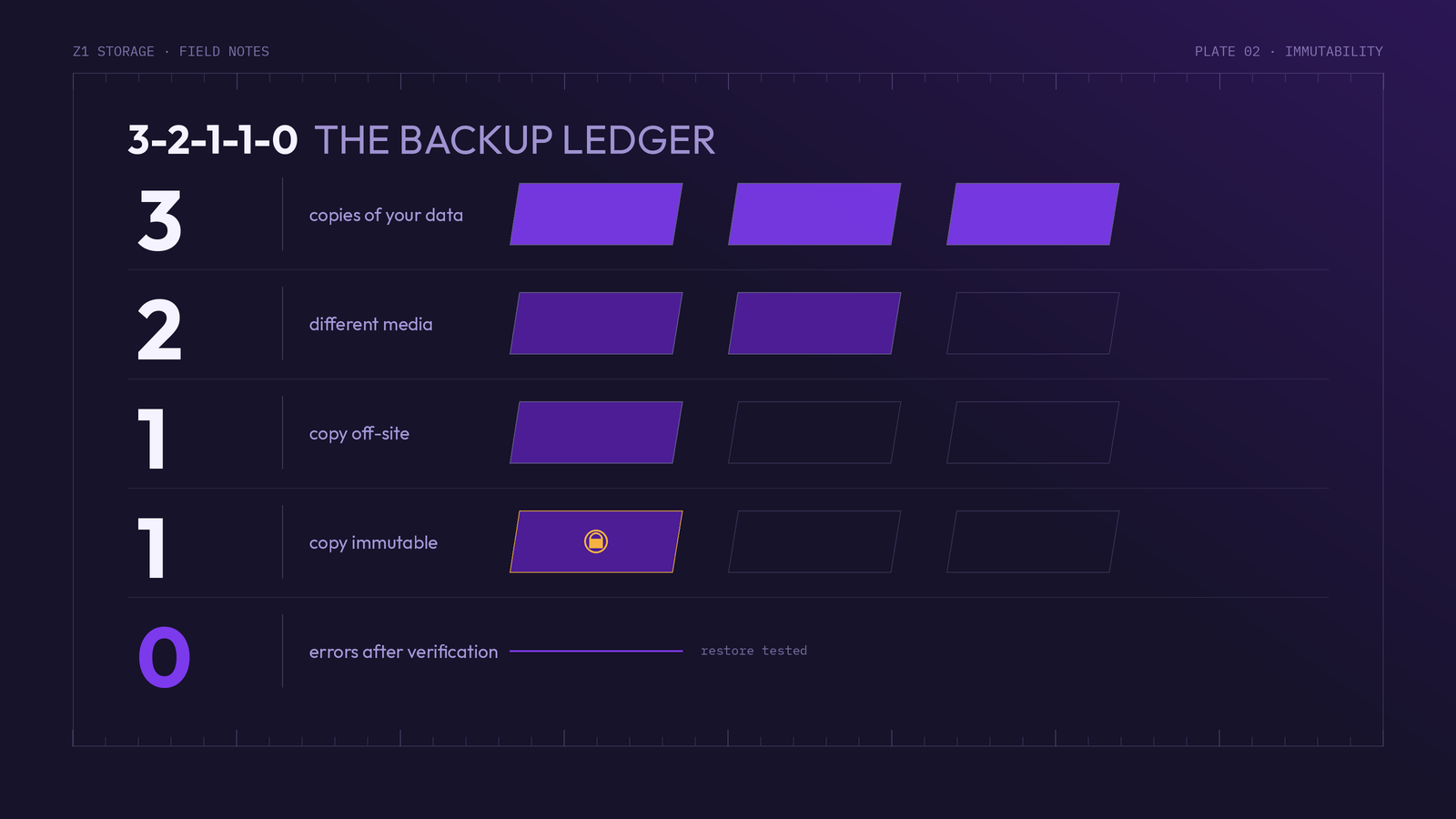
You may already follow the classic 3-2-1 backup strategy: three copies of your data, on two different media, with one off-site. The modern extension is 3-2-1-1-0:
- 3 copies of your data
- 2 different storage media
- 1 copy off-site (your Z1 Storage bucket, hosted in South Africa)
- 1 copy immutable or offline (your Object Lock-enabled bucket)
- 0 errors after backup verification — test your restores!
With an immutable Z1 bucket, the off-site copy and the immutable copy can be the same one — an affordable way to close the ransomware gap in your backup strategy.
Best practices
- Enable Object Lock on a new, dedicated backup bucket — remember it cannot be added later.
- Size your retention window deliberately. Longer immutability means stronger protection but more storage held; align it with how quickly you would detect a breach.
- Use separate credentials for backup jobs, with access limited to the buckets they need.
- Test restores regularly. Immutability guarantees your backups exist — verification guarantees they work.
- Keep versioning implications in mind: while objects are under retention they cannot be pruned, so expect your bucket to hold more data than a non-locked bucket with the same backup schedule.
Getting started
Immutability used to be an enterprise luxury. With Z1 Storage it is a checkbox at bucket creation — backed by affordable, POPIA-compliant object storage hosted in South Africa. Sign up and your first 10GB is free, so you can test an immutable backup workflow end to end before committing.