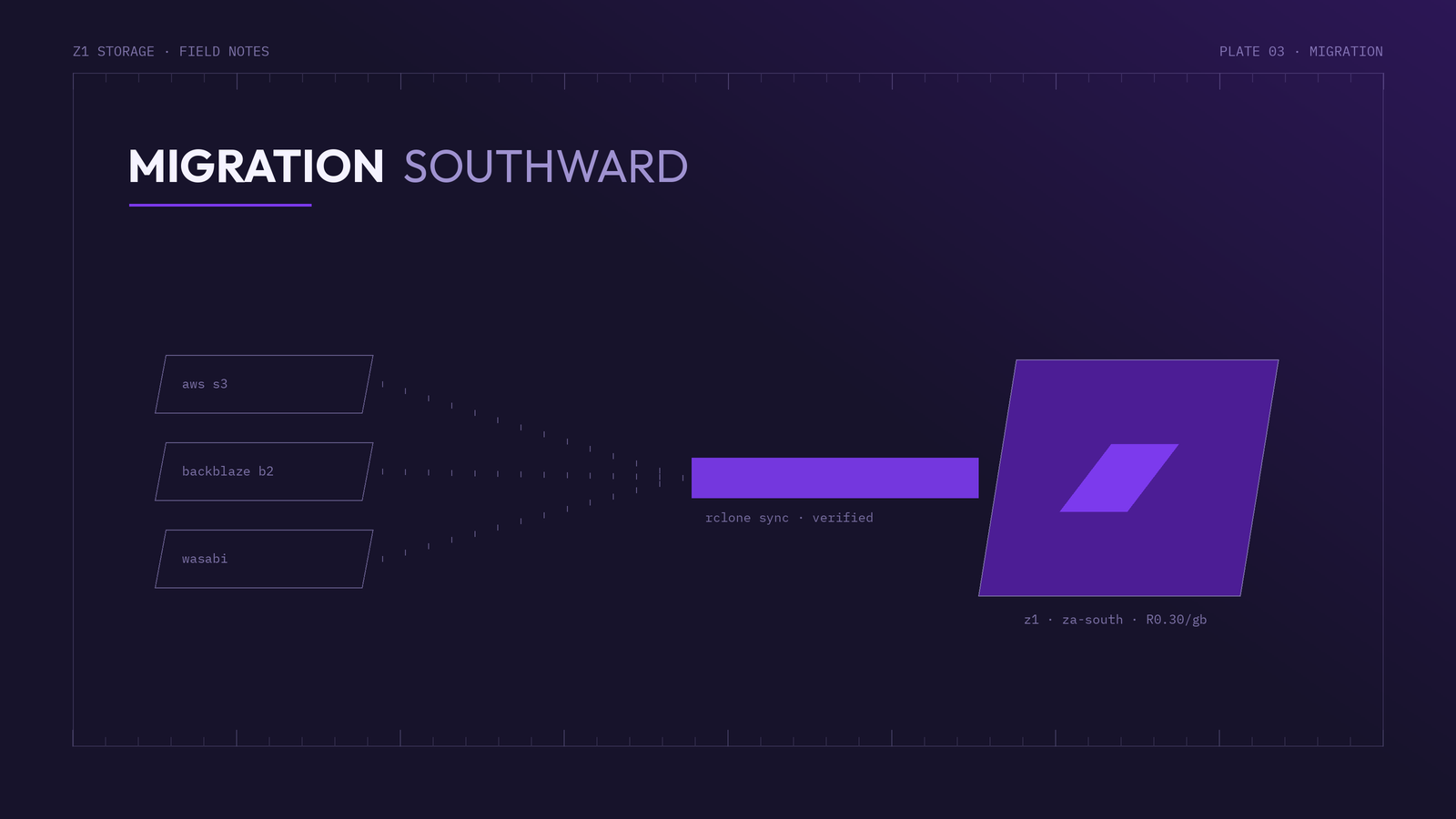
Moving terabytes between cloud providers sounds daunting — egress fees, long transfers, the fear of missing files. In practice, migrating S3-compatible data to Z1 Storage is a well-trodden path with good tooling, and we sweeten it considerably: new clients that reach 2TB or more within their first 2 months get a 2-month payment holiday, free uploads while you migrate, and hands-on help from our migrations team. Get in touch before you start and we'll plan it with you.
This guide shows the do-it-yourself route with rclone, which works from AWS S3, Backblaze B2, Wasabi, DigitalOcean Spaces or any S3-compatible source.
Before you start
- Inventory your source — how many buckets, how much data, how many objects? Your source provider's console or
rclone sizewill tell you. - Mind source egress fees. Downloading data out of AWS S3 or similar providers is usually billed per GB — that, not Z1, is the main cost of leaving. (Z1 charges nothing for your uploads.)
- Create your Z1 buckets in your client area — including an Object Lock-enabled bucket now if you want immutable backups later, since that choice is creation-time only.
Step 1: Configure both remotes in rclone
Install rclone (see our rclone guide) and run rclone config twice — once for your source (e.g. AWS S3), once for Z1 Storage:
# source example: AWS S3
name> aws
Storage> s3
provider> AWS
access_key_id> YOUR_AWS_KEY
secret_access_key> YOUR_AWS_SECRET
region> eu-west-1        # your source region

# destination: Z1 Storage
name> z1
Storage> s3
provider> Ceph
access_key_id> YOUR_Z1_ACCESS_KEY
secret_access_key> YOUR_Z1_SECRET_KEY
endpoint> s3.z1storage.com
Step 2: Trial run
Always start with a dry run of one folder:
rclone sync aws:mybucket z1:mybucket --dry-run --progress
Then copy a small subset for real and verify it:
rclone copy aws:mybucket/testfolder z1:mybucket/testfolder --progress
rclone check aws:mybucket/testfolder z1:mybucket/testfolder
Step 3: The main transfer
rclone sync aws:mybucket z1:mybucket --progress --transfers 16 --checkers 32
--transferscontrols parallel file transfers — raise it on fast lines, lower it on constrained ones.- For very large objects, add
--s3-chunk-size 64Mto speed up multipart uploads. - The transfer is resumable: re-running the same command picks up where it left off, only moving what's missing or changed.
- Running rclone on a server or VM close to your source (rather than your office connection) often multiplies throughput.
Step 4: Verify, cut over, decommission
- Verify:
rclone check aws:mybucket z1:mybucketcompares sizes and hashes across the board. - Cut over: repoint your applications and backup jobs to
s3.z1storage.comwith your Z1 keys — for most tools that's a two-field change. - Final delta sync: run the sync once more to catch anything written during the cutover.
- Decommission the source once you've run happily on Z1 for a comfortable period — and stop paying for it.
What it costs after you land
Flat R0.30/GB/month, uploads free, downloads and API calls included — no egress surprises, no retrieval tiers, and your data lives in South Africa under one privacy regime. Reach 2TB in your first 2 months and the payment holiday applies automatically — talk to our migrations team or sign up and start with 10GB free.